• Information for
    • Students
    • Alumni & Friends
    • Faculty
    • Staff
    • Community
  • QUICK LINKS
  • DIRECTORY
  • APPLY
  • GIVE
  • RENT
Hunter College
About
  • Overview
  • Mission
  • Strategic Plan
  • Accreditation
  • Fast Facts
  • Office of the President
  • Capital Projects & Planning
  • Sustainability
  • Campus Information
  • Contact Us
Academics
  • Approach
  • Provost
  • Schools
  • Departments & Programs
  • Majors
  • Honors & Scholars
  • Education Abroad
  • Advising
  • Research & Creative Works
  • Course Catalogs
Admissions
  • Overview
  • Undergraduate
  • Graduate
  • Course Catalogs
Student Life
  • Clubs & Organizations
  • Residence Life
  • Athletics
  • Dining On Campus
  • Community
  • Events
  • News
  • Libraries
Hunter College Schools
  • School of Arts & Sciences
  • School of Education
  • School of Health Professions
  • Hunter-Bellevue School of Nursing
  • Silberman School of Social Work
More Schools
  • Hunter College Campus Schools
  • Hunter College Continuing Education
  • Libraries
  • Students
  • Alumni & Friends
  • Faculty
  • Staff
  • Community
  • Events
  • News
  • APPLY
  • GIVE
  • RENT
  • QUICK LINKS
  • DIRECTORY
Center for Digital Learning & Innovative Pedagogy
  • About
    • NC-SARA Professional Licensure
  • Resources
    • Modes of Instruction
    • Accessibility
    • Brightspace Video Tutorials
    • Technology Tools
    • Learning Management System Policy
    • Academic Integrity Policy
    • Designing Online Courses
    • Online Teaching Best Practices
    • Netiquette
    • Requiring Cameras in Live Classes
  • Workshops and Consultations
    • EdTech Consultations
    • Technology Workshops
    • Course Design Camps
    • ACERT Lunchtime Seminars
  • People
  • Contact

Accessibility

Making Course Content Accessible

In April 2024, the U.S. Department of Justice (DOJ) issued final regulations under Title II of the Americans with Disabilities Act (ADA) that directly impact state and local government entities, including public colleges and universities. The new DOJ regulations mandate that digital content (e.g. syllabi, videos, slides, and PDF files) be accessible in online learning platforms (e.g. Brightspace) and on websites.

The most common issues causing course content to be inaccessible are:

  • images and figures lack text descriptions (alternative text);
  • videos are not captioned, or auto-generated captions have not been reviewed for accuracy;
  • there is not enough contrast between text and its background;
  • scanned documents have not been OCRed (converted into searchable, readable text) or OCR has not been reviewed for accuracy; and
  • PDF documents are untagged or auto-generated tags have not been corrected (making them inaccessible for assistive technologies like screen readers).

Course templates and repositories of course content remediated for accessibility are being developed by course and by department. Instructors can reach out to their department chair or course coordinator to find out if a template or repository exists for the course that they are teaching, or they can contact us at edtech@hunter.cuny.edu.

Below are resources to help instructors assess, plan, and implement digital accessibility policies and practices. Please follow the recommended steps for each type of course content. We recommend that you prioritize syllabi, announcements, presentation slides, and required readings and videos in your course. We encourage you to schedule a consultation with us, or email us at edtech@hunter.cuny.edu, if you need assistance making your course content accessible.
Ally, a tool integrated into CUNY Brightspace, is intended to create a more inclusive and accessible learning environment. It provides students with alternative ways to view and download course content. It also increases instructors’ awareness of accessibility issues and provides guidance on how to remediate accessibility issues.

Ally offers instructors two tools to inspect and remediate course content—traffic-light colored accessibility gauges alongside your content and the Course Accessibility Report. The former identifies accessibility issues for individual documents, while the latter provides an accessibility score for the entire course. Check your courses for accessibility issues by following the steps below.

  1. Watch the video overview on how to use Ally in Brightspace.
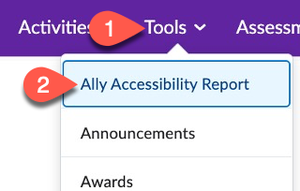
  2. Open the Ally Accessibility Report to identify content in your course that needs remediation. This tool is only viewable by instructors. It can be found under the Tools tab:
    First select "Tools" in the navigation bar, and then "Ally Accessibility Report" in the dropdown menu.
  3. The Ally Accessibility Report will identify the files with most severe accessibility issues and suggest fixes. Many common issues can be corrected directly in the report by clicking on the name of the file or content item and following the on-screen instructions. You can see the status of a document at a glance with the color or needle position of its accessibility gauge:
    Four gauges, the first colored red showing a low score, the second colored orange showing a medium score, the third colored light green showing a high score, and the fourth colored dark green showing a perfect score.
  4. For content with accessibility issues that cannot be corrected with Ally, remediate it using Word, PowerPoint, or the guidance for Readings below, and then re-upload the content. Reach out to us if you need help by emailing edtech@hunter.cuny.edu or scheduling a consultation.

In addition, students can click on the Ally Alternative Formats icon An icon depicting the Ally capital A logo with a downward pointing arrownext to content in a Brightspace module and view it in a variety of formats such as audio, HTML, Braille and translations into different languages. The video Ally Alternative Formats provides more details. While the Alternative Formats tool is not a replacement for accessible course content, students may find it useful.

    1. Review best practices on preparing accessible documents:
      • Include descriptive Alt Text for all non-decorative images and figures. Describe the image or figure as if you were explaining its contents in words to someone who couldn’t see it.
      • Use Styles and Headings to format your document, instead of simply using alignment/font size/bold/italic to distinguish elements in the document. This allows screen reader software to locate and identify headings and other page elements.
      • Format lists by using the Numbering or Bullets functions. This allows screen reader software to identify the list as a list.
      • Label tables clearly. Avoid empty cells and merging cells in tables, which can make tables difficult to navigate using screen reader software.
      • Include sufficient whitespace around text blocks and other document elements to improve readability.
      • Don’t use text styling (color, shape, font variation, placement, etc.) as the only way to convey meaning. For example, if you only emphasize text by making it red, screen reader software won’t distinguish it from other text. 
      • Use meaningful link text and the “Add Hyperlink” feature when creating hyperlinks. The text should clearly convey where the link will take the user when clicked, i.e. Hunter College Libraries. Avoid links like "click here for Hunter College Libraries" and "https://library.hunter.cuny.edu/," as the link text does not convey its meaning. Exceptions can be made for citation styles that require the URL to be included in the citation.
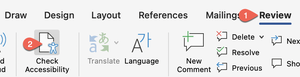
    2. Open your syllabus or other document in Microsoft Word and use the Accessibility Checker to identify accessibility issues in your document. The Accessibility Checker can be found in the ribbon by clicking on Review > Check Accessibility:
      Click on Review above the ribbon, and then Check Accessibility.
    3. Follow the on-screen instructions to resolve any accessibility issues.
    4. Upload or re-upload the document to Brightspace to share with your students. Brightspace will display the Word file in the Content Viewer for students.

Short videos to fix common issues

      1. Add alt text to images in Word
      2. Format tables in Word
      3. Designate headings in Word
      4. Format links in Word
    1. Review best practices for making PowerPoint slides more accessible.
    2. Open your slide deck in PowerPoint and use the Accessibility Checker to identify accessibility issues. The Accessibility Checker can be found in the ribbon by clicking Review > Check Accessibility:
      Click Review above the ribbon and then Check Accessibility.
    3. Follow the on-screen instructions to resolve any accessibility issues.
    4. Upload or reupload the slides to Brightspace to share with your students. Brightspace will display the PowerPoint file in the Content Viewer for students.

    Short videos to fix common issues

    1. Add alt text to images in PowerPoint
    2. Add titles to slides in PowerPoint
    3. Designate reading order in PowerPoint
  1. Upload videos to Brightspace and automatically generate captions as shown in the video How to Upload Video to Brightspace.
  2. Download the captions file (.vtt file) for each video.
  3. Edit captions for accuracy in Word or another text editor following captioning guidelines. Pay attention to the spelling of last names, places, and special terminology.
  4. Upload the revised captions file to Brightspace.

Short instructional videos

  1. How to Upload Video to Brightspace
  2. How to Download a Captions file and Re-upload it after Revisions

Other tools such as VoiceThread and YouTube can auto-generate captions. Reach out to an instructional designer to learn how to edit captions for accuracy.

  • Find digital versions of readings and avoid scanning from print whenever possible. Look for digital copies in the Hunter College Libraries or on reliable websites. Ask a Librarian for assistance if needed. For books not already electronically available, contact Library Reserves to ask if an e-book is available for purchase through the Library’s vendors and request that it be put on reserve for your course. If a digital copy of your reading is unavailable, scans should be clean copies without any skews, discoloration from copying and scanning, or marks that cover text, such as handwriting or highlighting. 
  • Find and use the persistent link or permalink if you are assigning an article from a library database.
  • When scanning from print is unavoidable, the document must contain recognized text and the recognition must be checked for accuracy. Without the use of Optical Character Recognition, the scanned page is an image of a page rather than readable characters on a page. Screen reader software and other accessibility tools will not be able to read out or parse the text. 
  • PDF documents need accurate accessibility tags to be read properly by screen reader software. Without accessibility tags, there are no accurate indications of page elements like headings, lists, footnotes, endnotes, or tables in the document. A screen reader may not be able to distinguish page elements or read them in the proper order.
  • Ask for support when needed. Most PDFs, but particularly those scanned from print, need remediation to meet accessibility standards. The Center for Digital Learning and Innovative Pedagogy, the Library E-Reserves and Office of AccessABILITY are available to provide support and remediation. PDF remediation may require at least several weeks and requests will be prioritized. If you become aware of a user with relevant accessibility needs and PDFs in your course have not been remediated, please contact these supports immediately.

Please schedule a consultation with us, or email us at edtech@hunter.cuny.edu, if you need assistance making your course content accessible.

Schedule a consultation with us

HUNTER

Hunter College
695 Park Ave NY, NY 10065
(212) 772-4000

  • Facebook
  • Twitter
  • Instagram
  • Flickr
  • ABOUT
  • ACADEMICS
  • ADMISSIONS
  • EVENTS
  • NEWS
Hunter College Schools
  • School of Arts & Sciences
  • School of Education
  • School of Health Professions
  • Hunter-Bellevue School of Nursing
  • Silberman School of Social Work
  • School of Arts & Sciences
  • School of Education
  • School of Health Professions
  • Hunter-Bellevue School of Nursing
  • Silberman School of Social Work
Our Other Schools
  • Hunter College Campus Schools
  • Hunter College Continuing Education
  • Hunter College Campus Schools
  • Hunter College Continuing Education
Hunter College Libraries
More Info
  • Bookstore
  • Contact Us & Feedback
  • Jobs
  • Public Safety
  • Roosevelt House
  • Student Housing
  • Space Rentals
  • Bookstore
  • Contact Us & Feedback
  • Jobs
  • Public Safety
  • Roosevelt House
  • Student Housing
  • Space Rentals
Public Information
  • Annual Security & Fire Safety Report
  • Campus Hazing Transparency Report
  • Consumer Information
  • CUNY Tobacco Policy
  • Enough is Enough
  • Focus on Campus
  • Annual Security & Fire Safety Report
  • Campus Hazing Transparency Report
  • Consumer Information
  • CUNY Tobacco Policy
  • Enough is Enough
  • Focus on Campus
CUNY
  • © 2026 Hunter College
  • Accessibility
  • Privacy
  • Terms