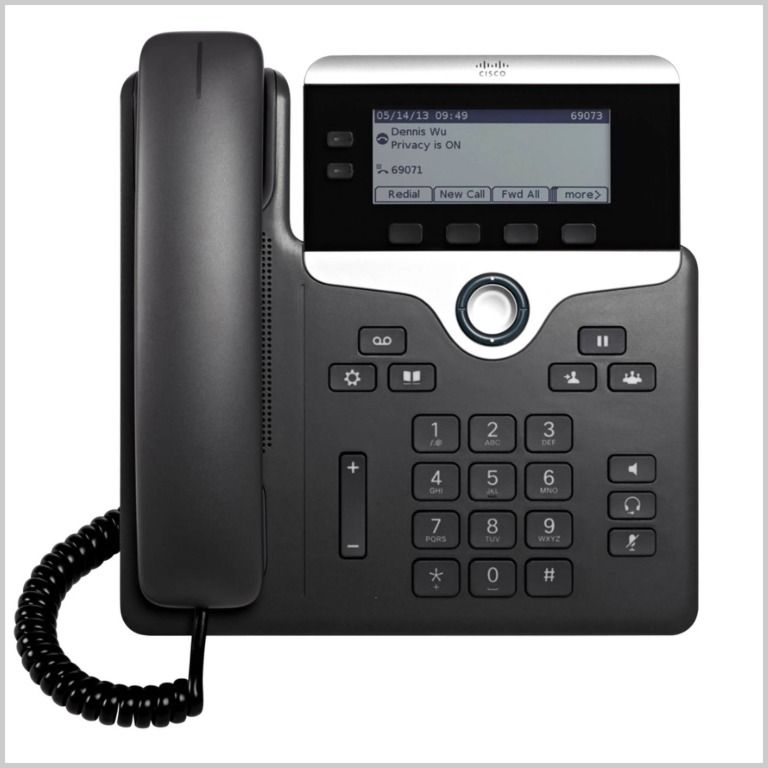
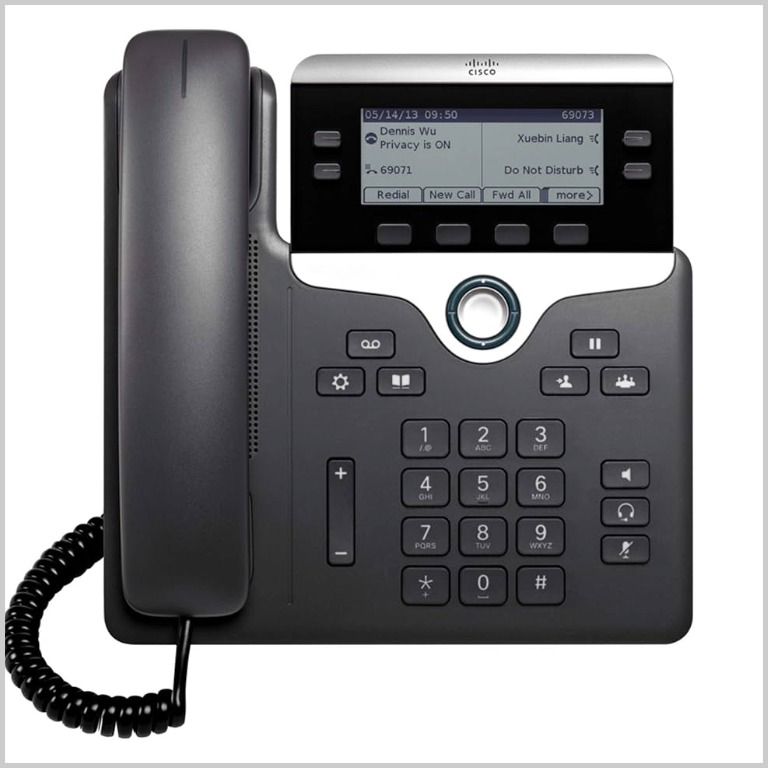
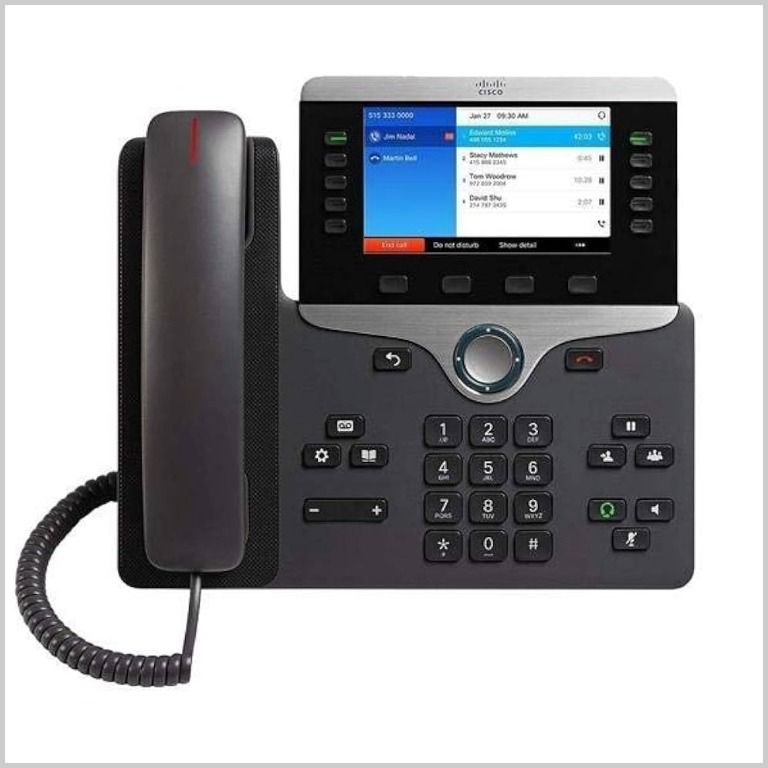
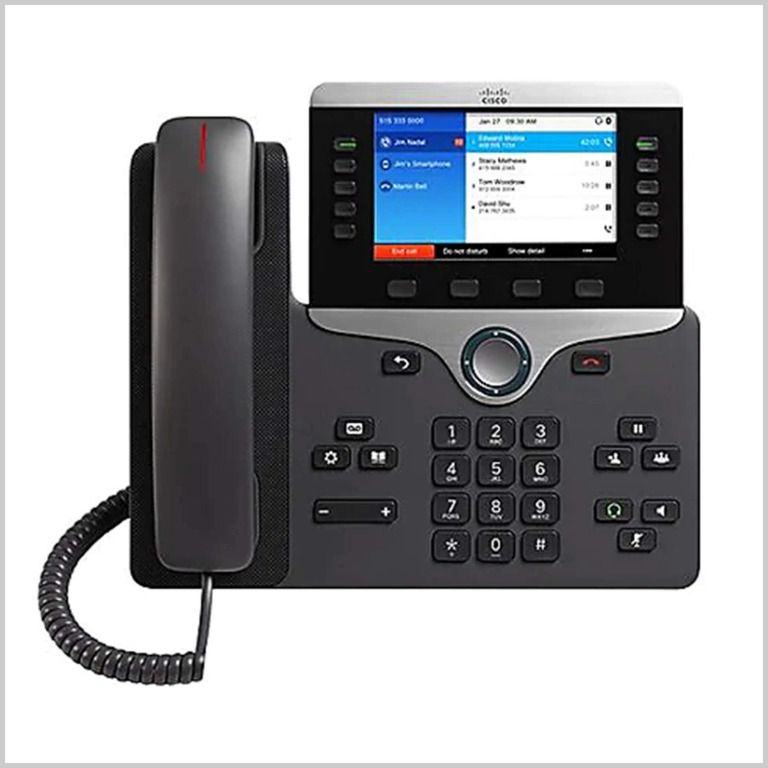
Hunter College provides telephone lines and equipment for the campus community. School responsibilities include landline, VOIP and cellular, phone center operator services, voicemail systems, call center systems, emergency notification lines, conference/events setup (Polycom), campus directory coordination and infrastructure cabling.
Cisco
Telephone Service
Internal and Site to Site Calls: Dial 2-digit site code + 4-digit extension
| Location | Extension |
|---|---|
| 68th Street Campus | 11+XXXX |
| Silberman School of Social Work | 12+XXXX |
| Roosevelt House | 13+XXXX |
| Hunter Highschool | 14+XXXX |
| 60 West - School of Nursing | 17+XXXX |
External Calls: Domestic: 9+1 Area Code + Number
Emergency External: 9+911, 911, or Contact Public Safety at (212) 772-4444.
Locations:
- 68th Street Campus — West building
- Roosevelt House
- Silberman School of Social Work
- 60 West — School of Nursing
Voicemail Instructions
- Press the Messages button.
- Enter your default PIN 135790#
- Record your Name.
- Record your Greeting.
- Change your Temporary PIN.
- Confirm your PIN.
- Press # to confirm Directory Listing.
Note: If you hang up before completing setup, you need to repeat setup again
From your phone:
- Press Voicemail button.
- Enter your PIN, #
Voicemail access from another phone:
- Press Voicemail button, * key.
- Enter your 4-digit extension, PIN, #.
- Dial your direct number.
- Press * key
- Enter 4-digit extension, #
- Enter your PIN, # OR
- Dial 347-554-2200 to access from PSTN
To leave someone a voicemail message without having to call them:
- Press * + 2 digit site code + X-digit extension.
To check for messages after logging in:
- Press 1 to listen to new messages.
- Press 3, then 1 to review saved messages.
- Press 3, then 2, then 1 to listen to deleted messages.
The following options can be used while listening to your mail:
- 1 Restart
- 2 Save
- 3 Delete
- 4 Slow Playback
- 5 Change Volume
- 6 Fast Playback
- 7 Rewind
- 8 Pause or Resume
- 9 Fast forward-End
- # Skip Message
- ## Keep Msg. New
After listening to messages:
- 1 Replay
- 2 Save
- 3 Delete
- 4 Reply
- 5 Forward
- 6 Mark As New
- 7 Skip Back
- 9 Msg. Properties
- * Cancel Playing Msg
- 0 Help
Web Inbox-Visual voicemail through your computer:
Access your voicemail easily, whether on campus or remotely, using Hunter College's VPN. Follow the steps below:
- Go to: https://myvoicemail.hunter.cuny.edu
- Username: NETID username
- Password: NETID password
- Select Web Inbox.
To view and listen to voicemail:
- New unheard messages are bolded. Old messages are not bolded.
- Place your mouse over the message and click the play button to hear the message.
To log off Web Inbox:
- Click the Sign Out link in the upper-right corner.