

 Download the two-page cheatsheet as a PDF
How do I link to another page within the WebCMS?
A link from one page in the WebCMS to another page in the WebCMS is called an internal link.
How you create an internal link on a page depends on the text editor you're using:
How to Create an Internal Link Using the TinyMCE Text Editor
- Start by navigating to the page you'd like to edit and accessing the Edit Page screen. (Need help with this step?)
- In the Body Text area, highlight the text you want to turn into a link.
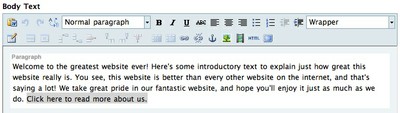
- Click on the chain link icon in the formatting toolbar. A box titled Insert/Edit Link should appear.
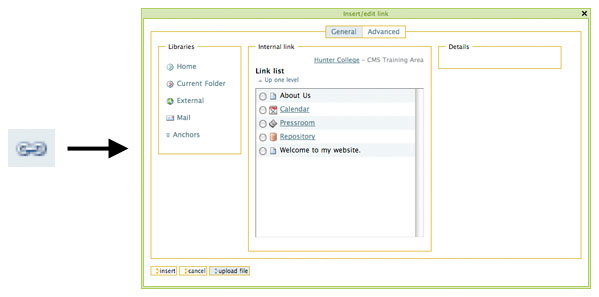
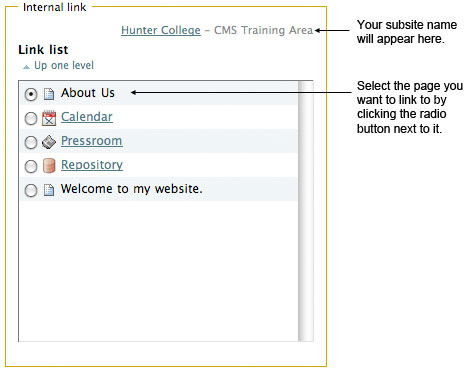
- The middle section of this box is titled Internal Link. Navigate through the Link List to find the item you want to link to. Note: You can link to any content item in the WebCMS. In addition to pages, you can also link to folders, aliases, news, events, files, etc.
- Click on Insert.
- You may now continue to edit your page. When you're done, remember to click Save.
How to Create an Internal Link Using the Kupu Text Editor
- Start by navigating to the page you'd like to edit and accessing the Edit Page screen. (Need help with this step?)
- In the Body Text area, highlight the text you want to turn into a link.

- Click on the chain link icon in the formatting toolbar. A box titled Insert Link should appear.

- Navigate to the item you want to link to and select it by clicking on the corresponding radio button. Note:
You can link to any content item in the WebCMS. In addition to pages,
you can also link to folders, aliases, news, events, files, etc.
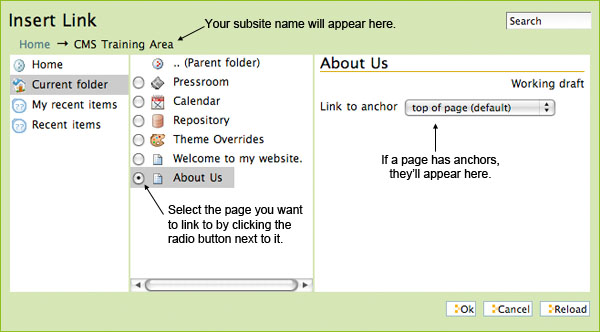
- Click on Ok.
- You may now continue to edit your page. When you're done, remember to click Save.
I don't know which text editor I'm using.
Short Answer:
If your formatting toolbar is blue, you're using TinyMCE.
If your formatting toolbar is green, you're using Kupu.
Long Answer:
There are many differences between the Kupu and TinyMCE text editors. We strongly recommend using TinyMCE. If you would like to change your text editor from one to the other, click here to learn how.